HubSpot scheduling lets prospects book sales meetings against your team’s calendar availability, without an email exchange to find a time. A reliable setup takes more than publishing a booking link: you need the right meeting type, connected calendars, sensible availability rules and a tested CRM handoff.
This guide walks through that setup for a B2B sales team, from checking access to launching shared booking pages. The goal is a booking process that gives buyers accurate availability and leaves reps with the information they need to prepare.
Choose the right meeting type
HubSpot’s meetings tool uses scheduling pages to show available times and collect booking details. Start by deciding who needs to attend each kind of conversation.
- Meeting type: One-to-one — How availability works: Shows one organizer’s available times — Typical sales use: Account executive discovery call
- Meeting type: Group — How availability works: Finds times when all selected organizers are available — Typical sales use: Demo requiring an account executive and solutions engineer
- Meeting type: Round robin — How availability works: Offers availability across eligible team members and assigns an organizer — Typical sales use: Inbound discovery shared across several reps
A group page is not interchangeable with round robin. Adding five reps to a group page requires an overlapping opening for all five, which can make a healthy team look fully booked.
Define the meeting’s purpose, required attendees and ownership rule before configuring the page. Keep separate pages when those requirements differ.
Check HubSpot scheduling access before setup
Access depends on your subscription, assigned seat and user permissions. A paid account does not automatically give every user the same scheduling capabilities.
HubSpot offers basic personal scheduling through its free tools, while additional pages, team scheduling and other controls can carry paid subscription or seat requirements. Check HubSpot’s scheduling-page documentation against your account before designing the rollout. Packaging and interface labels can change.
- Requirement: Organizer access — What to verify: Each intended organizer has the necessary seat and permissions
- Requirement: Calendar connection — What to verify: Each rep can authorize their supported Google or Microsoft calendar account
- Requirement: Team pages — What to verify: Your subscription supports the group or round-robin configuration you need
- Requirement: Automation — What to verify: Required reminders, workflows or sequences are available in your subscription
- Requirement: Administration — What to verify: Someone owns changes to calendars, booking pages and routing rules
Ask your administrator to resolve missing access first. Otherwise, a manager may configure a page successfully while an intended organizer cannot participate.
Avoid purchasing a higher tier solely on the assumption that it includes a particular routing or automation feature. Confirm that requirement explicitly.
1. Connect each organizer’s calendar
Each rep should connect their own calendar through their HubSpot user settings, generally under General > Calendar. Follow HubSpot’s calendar connection instructions for the supported provider and authorization flow.
Use the work account that actually holds the rep’s appointments. Connecting an empty secondary calendar can make the booking page appear functional while exposing times that are already occupied elsewhere.
For HubSpot scheduling to reflect real availability, review both where new events are created and which calendars are checked for conflicts, using the options available for your provider. Do not assume every calendar visible in Google or Outlook automatically blocks booking times.
Add a test event marked Busy, then check whether that time disappears from the public page. Repeat with relevant secondary calendars. Events marked Free may not block availability, even when their titles say “Vacation” or “Customer meeting.”
If authorization requires administrator approval, resolve that before launch. Record who can reconnect the calendar if permissions are revoked or the rep changes accounts.
2. Create the scheduling page
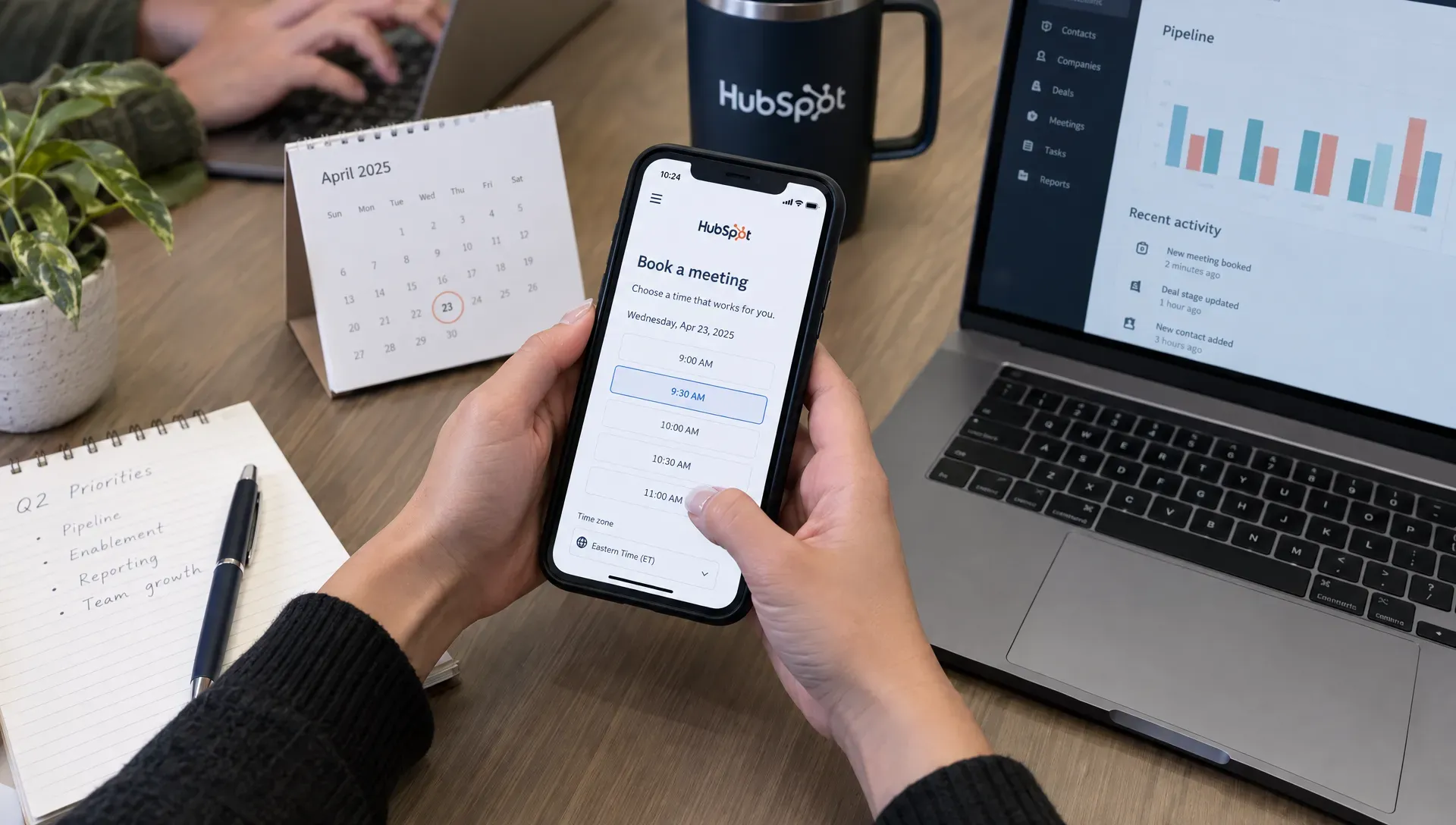
Open the meetings tool, typically under Sales > Meetings Scheduler, and choose the option to create a scheduling page. Select one-to-one, group or round robin according to the decision you made earlier.
Choose the organizer or participating reps, then give the page a clear internal name. Something like “Inbound discovery, North America” is easier to manage than “Sales meeting 3.”
For the buyer-facing title, describe the conversation rather than the software powering it. “Discuss your inbound sales workflow” tells a prospect more than “Book time with our team.” Explain the intended outcome and who should attend in the description.
With HubSpot scheduling, the meeting type determines the basic availability logic, but it should not be treated as a complete account-routing policy. Check the controls your account provides for contact ownership and team assignment.
Do not assume a round-robin page automatically enforces territories, named-account ownership or equal distribution over every reporting period. If those rules matter, document them and test representative cases before publishing the page.
3. Set availability, buffers and time zones
Configure the hours during which reps are willing to accept this meeting type. Calendar availability and bookable hours serve different purposes: an empty calendar at 7 p.m. should not make that time bookable unless the rep intends it to be.
Set the meeting duration, minimum notice and booking window. Where supported, add time before or after appointments so reps can prepare and finish notes. A 30-minute discovery call may need more than a 30-minute opening in the rep’s working day.
For example, a team might choose 30-minute calls, 15 minutes afterward, a next-business-day notice requirement and a rolling four-week booking window. Those are operating choices, not recommended defaults for every team.
HubSpot scheduling should also be tested from the buyer’s time zone, not just the organizer’s. Confirm that the displayed zone is clear and that visitors can correct it when necessary.
Use named regional time zones rather than relying on a fixed UTC offset in your meeting description. Daylight saving changes can otherwise make written instructions disagree with the booking page.
Finally, check holidays and leave. A recurring availability schedule does not replace accurate busy blocks on the connected calendars.
4. Customize the form and booking experience
Collect only the information needed to route or prepare for the meeting. For many discovery calls, contact details, company information and one useful context question are enough.
A question such as “What would you like to improve about your current process?” usually gives a rep more preparation value than several required qualification fields. Move deeper qualification into the conversation unless it determines whether the meeting should happen at all.
Keep HubSpot scheduling forms aligned with your CRM’s data standards. Use existing properties where appropriate and check whether a submitted value updates an existing contact. Do not create duplicate properties simply because a page needs a different label.
Explain how booking information will be used and provide an accessible privacy notice. Keep operational booking communications separate from marketing enrollment, applying the consent requirements relevant to your business and audience.
Preview the complete experience on a phone and with keyboard navigation. Check that labels are understandable, required fields are clear and validation errors explain how to recover. If you embed the page, provide a normal booking link as a fallback.
Review the confirmation experience too. Buyers should understand what happens next and how to change the appointment.
5. Add conferencing and post-booking automation
Choose the meeting location or supported conferencing integration. For remote calls, verify that the actual calendar invitation contains the correct join link. A location mentioned in the page description is not a substitute for a working conference link in the event.
Check which account generates the link, especially on team pages. Test a booking for each organizer rather than assuming one rep’s successful setup proves the whole team works.
HubSpot scheduling confirmations and reminders should give attendees enough practical information to show up: the time, time zone, location and a short agenda. Enable the reminder options available to your subscription and avoid duplicating them with a separate calendar or automation tool.
For CRM automation, define a small number of clear actions. You might notify the assigned rep, create a preparation task or update a lifecycle property where appropriate. Make sure rescheduling and cancellation do not leave stale tasks or misleading status values behind.
Teams planning beyond appointment reminders can use this French-language guide to CRM automation for SMEs to place scheduling within a broader CRM and integration rollout.
Keep the initial workflow simple enough to troubleshoot. Add complexity after you have confirmed that bookings, ownership and event updates behave correctly.
6. Test the booking and CRM handoff
Use an external email address and a private browser window to test the experience as a prospect. An administrator viewing a page while signed in may miss issues that affect real visitors.
Run at least these checks before distributing the link:
- Book an open slot and confirm that the correct organizer receives the event.
- Add a busy calendar event and verify that the conflicting slot disappears.
- Book using an existing contact’s email address and inspect the resulting CRM record.
- Reschedule and cancel a test booking, checking both calendars and related automation.
- Repeat on mobile, in another time zone and across the organizers on a team page.
A successful HubSpot scheduling test ends in the CRM, not on the confirmation screen. Check the contact association, meeting activity, assigned owner and any properties your workflow updates. Do not assume the meeting will associate with the intended company or deal without verification.
If website conversations also feed HubSpot, review your integration’s record matching, field mapping and permissions. The person booking should not become a disconnected duplicate of the lead your team already knows.
Keep a short record of expected outcomes so future administrators can repeat the same checks after configuration changes.
7. Share links and manage ownership
Publish the page where the relevant buyer is already making a decision: a demo page, a sales email or a follow-up conversation. Match the invitation to the meeting’s purpose instead of using the same generic booking link everywhere.
Use personal pages when the relationship belongs to a specific rep. Use the appropriate team page when new inbound demand should reach an eligible pool. Avoid embedding an individual employee’s link across the website if that person is not the permanent inbound owner.
Treat HubSpot scheduling pages as maintained sales infrastructure. Keep an inventory of each public page, its business purpose, its owner and the places it is embedded or shared.
Review that inventory when reps join, leave or change territory. Before retiring a page, check website calls to action, email templates and active sequences for old links. Provide a replacement path rather than leaving buyers at a dead end.
Measure booked, held and qualified meetings separately. More bookings are not necessarily better if no-shows rise or the wrong prospects reach account executives. Use available reporting and CRM outcomes to identify where the process needs adjustment.
Troubleshoot common scheduling problems
Start with the calendar connection and meeting type before rebuilding a page. Many availability problems come from a mismatch between the intended rules and the calendars being checked.
- Symptom: No available times — Likely checks: Connected calendar, working hours, notice period, buffers and booking window
- Symptom: Group page looks fully booked — Likely checks: Whether every required organizer has overlapping availability
- Symptom: Conflicting meetings appear bookable — Likely checks: Which calendars are checked and whether existing events are marked Busy
- Symptom: Conference link is missing — Likely checks: Conferencing authorization, selected location and organizer-specific setup
- Symptom: Meeting reaches the wrong rep — Likely checks: Page membership, assignment settings and any separate routing workflow
- Symptom: Duplicate reminders arrive — Likely checks: Scheduling reminders, calendar notifications and workflow emails
- Symptom: Old tasks remain after cancellation — Likely checks: Cancellation handling and the workflow’s update or unenrollment logic
When HubSpot scheduling appears to allow double booking, distinguish between two separate problems: an existing event that was not recognized as a conflict and simultaneous bookings made through different systems. Test the specific scenario rather than assuming a single setting solves both.
Review calendar authorization after account-security changes. Reconnecting a calendar may be necessary, but first identify why the connection failed so the issue does not recur across the team.
Help visitors reach the booking step
Once HubSpot scheduling is reliable, check whether visitors have enough information to choose a meeting in the first place.
Nudge engages B2B website visitors, answers questions using your content with citations and books meetings. Its other agents follow up, recognize returning prospects and prepare sales reps with lead briefs.
If unanswered product questions are stopping qualified visitors from booking, consider that conversation alongside the scheduling setup. Validate the CRM integration and ownership handoff before rolling out the combined process.
Frequently asked questions
Is HubSpot scheduling free?
HubSpot provides basic personal meeting scheduling through its free tools. Additional pages, team configurations and automation can depend on your subscription and assigned seat. Check the current product documentation and your account’s access settings before committing to a team workflow.
Can multiple sales reps share one booking page?
Yes, with an eligible team scheduling setup. Group pages require the selected organizers to be available together. Round-robin pages offer availability across eligible reps and assign an organizer according to the configured behavior.
Is HubSpot Meetings better than Calendly?
HubSpot can be a practical choice when your sales team already manages contacts and activities there. Calendly may suit teams prioritizing a separate scheduling layer. Compare the specific routing, calendar and administration requirements you need, rather than choosing by brand. Our guide to Calendly alternatives for B2B sales teams covers the broader shortlist.
Can buyers reschedule or cancel?
Test the options supplied with your booking confirmation and calendar invitation. Confirm that a change reaches every organizer and updates any connected workflows. Include a clear contact route for buyers who cannot use the self-service options.